
TikTok Slideshow Downloader: Save Every Slide as Photos or a ZIP
You find a TikTok slideshow worth keeping: a ten-step skincare routine, a city guide, a set of wallpapers, a meme dump that had you crying. Saving it should be easy. Instead, you are screenshotting slide after slide, losing track of the order and ending up with a camera roll full of cropped images.
Photos are delivered through TocWave for reliable downloads. The ZIP file is made in your browser.
A TikTok slideshow downloader fixes that in one go. Paste the slideshow link into TocWave, and you can save every slide at full size or download them all at once as a ZIP, numbered in order. No watermark, no app and no login.
Here’s how it works, which option to pick, and what to do if a slideshow won’t load.
What Is a TikTok slideshow downloader?
A TikTok slideshow downloader is an online tool that saves a complete TikTok slideshow post, rather than one image or one clip. A slideshow is a single post that bundles several photos, often with a song playing underneath.
TikTok has two kinds of slideshows, and it helps to know which one you are looking at:
Photo Mode slideshows. You swipe through the images yourself. Dots under the post show how many slides there are, up to 35 per post, and the music keeps playing as you swipe.
Video slideshows. The photos were turned into a video with a template, so the slides move on their own. These are technically videos.
This page is for Photo Mode slideshows. Video slideshows are already videos, so save them with the TocWave TikTok Video Downloader (MP4) or the TikTok to MP3 converter (audio).
TocWave is an independent tool and is not affiliated with TikTok.
How to use the TocWave TikTok slideshow downloader?
The TikTok slide download process usually takes about a minute, on a phone or a computer:
1. Copy the slideshow link.
Open the post in TikTok, tap Share, then Copy link. On desktop, copy the URL from your browser bar.

2. Open TocWave.
Go to the TocWave TikTok Slideshow Downloader in any browser.
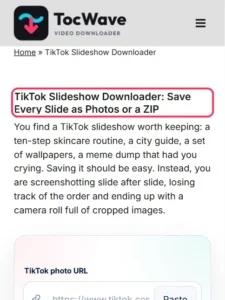
3. Paste the link.
Drop it into the box and tap Analyze Slideshow.
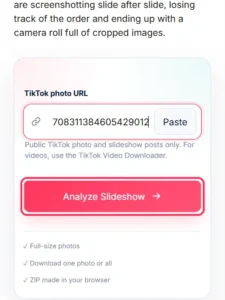
4. Check the preview.
TocWave shows every slide in order, with its size.

5. Pick your format.
Tap Download under any slide, or keep the slides you want ticked and tap Download selected ZIP.
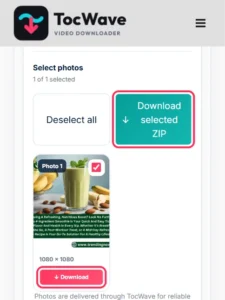
6. Save.
The file goes to your Downloads folder or camera roll.
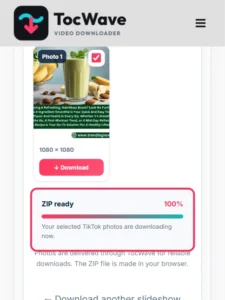
That’s the full TikTok slideshow download, start to finish.
Choose your format: single images or a ZIP
This is where a dedicated slideshow downloader earns its keep. One link gives you two ways to save the same post, so pick the one that fits what you will do next.
|
Option |
What you get |
Best for |
|---|---|---|
|
Individual images |
Any slide as a separate image, usually JPG |
Grabbing one or two favorites |
|
ZIP of all slides |
Every slide in one ZIP, in order |
Keeping the full set on a computer |
|
Video slideshows |
Not on this page: they’re normal TikTok videos |
Save them as an MP4 with the TikTok Video Downloader |
|
The sound |
Not on this page yet |
For video posts, use the TikTok to MP3 converter |
Download all slides as a ZIP
Leave every slide ticked and tap Download selected ZIP, and TocWave packs them into a single ZIP file, numbered in the order the creator posted them. That means no more saving 20 images one at a time, and no guessing which came first.
On a computer, double-click the ZIP to open it. On iPhone, tap it in the Files app. On Android, most file managers can open it with a tap.
Can you save a TikTok slideshow as an MP4?
Not on this page yet. Photo Mode posts don’t exist as video files on TikTok: the images and the song are stored separately and played together as you swipe. TocWave saves the images, not a video.
If the slideshow was posted as a video, with slides that move on their own, it’s a normal TikTok video. Save it as an MP4 with the TocWave TikTok Video Downloader.
Just want the sound?
Sometimes the music is the whole reason you’re here. This page saves the slides, not the sound. The TocWave TikTok to MP3 converter saves audio from video posts, but it doesn’t work with Photo Mode slideshows yet.
Download TikTok slideshows on iPhone, Android and PC
TocWave works the same way in every browser. The only real difference is where each format lands:
What people save TikTok slideshows for?
Slideshows tend to hold the kind of content people want to keep. Common reasons to download slide TikTok posts include:
Download slide TikTok HD: quality you can expect
When you download slide TikTok HD images, you’re saving the files at the full size TikTok serves for the post. In our tests, slides came through at sizes such as 1080 × 1440 and 2160 × 2880 pixels, so they look sharp on phones and laptops alike.
A few honest points about quality:
Why use a TikTok slide downloader instead of screenshots?
Screenshots work for one slide. For a whole post, a TikTok slide downloader saves a lot of time and gives you better files:
If you only want one image from a post, the TocWave TikTok Photo Downloader lets you pick out a single image quickly.
Is it safe to use a TikTok slideshow downloader?
Yes. TocWave never asks for your TikTok login and has nothing to install. Our server reads the public post and passes the photos to you, and the ZIP is made in your browser. It only works with public posts.
As with any download, respect the creator. Saving a slideshow to enjoy later is fine. Reposting it as your own, or using the slides or music commercially, needs the creator’s permission and the right music licence.
TikTok slideshow downloader not working? Quick Fixes
|
Problem |
Likely cause |
Fix |
|---|---|---|
|
“That is a TikTok video post” |
It’s a video slideshow, not Photo Mode |
Use the TikTok Video Downloader or the TikTok to MP3 converter |
|
The ZIP takes a while |
Every slide is fetched one by one |
Wait for 100%, or untick the slides you don’t need |
|
“Private or unavailable” |
Private account or deleted post |
Only public slideshows can be downloaded |
|
ZIP won’t open on iPhone |
Opened outside the Files app |
Save it to Files and tap it to unzip |
Frequently Asked Questions
Final thoughts
A slideshow is more than a stack of photos. It’s the order and the pacing that tie it together. A TikTok slideshow downloader lets you keep every slide in that order, instead of a messy pile of screenshots.
With TocWave, one link gives you two choices: single images or every slide in a ZIP. Pick the one that suits you, save the slides at full size and come back to it whenever you like. For everything else on TikTok, the TocWave TikTok Downloader has you covered.