TikTok Transcript Extractor: Get the Captions and Subtitles From a TikTok Video
Sometimes you want the words, not the video. A recipe read out too fast, a study tip you want in your notes, a quote you need to get exactly right. Typing it out while you pause and rewind is slow, and it’s easy to get wrong.
Public video links and TikTok short links are supported.
Use only public content you own or have permission to process. Caption availability and accuracy are controlled by TikTok.
The TocWave TikTok Transcript Extractor copies the text TikTok already publishes for a video. Paste a public link, and you get the post caption and any subtitle transcripts TikTok makes available, ready to copy or download as a text file. There’s no app and no TikTok login.
TocWave is an independent tool and is not affiliated with TikTok.
What this tool extracts
TocWave reads two kinds of text from a public TikTok video:
- The post caption. The description the creator wrote under the video, including hashtags and mentions.
- Subtitle transcripts. The captions TikTok shows on the video itself. These can come from TikTok’s auto captions or be added by the creator, and some videos have them in more than one language.
It doesn’t listen to the video or run AI transcription. If TikTok hasn’t published subtitles for a video, there’s no transcript to extract. You’ll still get the post caption.
How to get a TikTok transcript
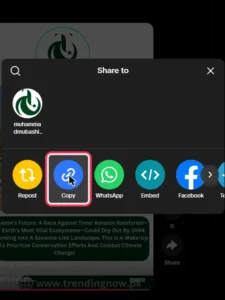
1. Copy the video link.
In the TikTok app, tap Share, then Copy link. On a computer, copy the address from your browser bar. Short links work too.
2. Paste the link.
Paste the link into the box above.
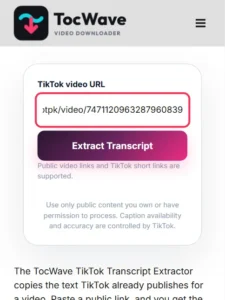
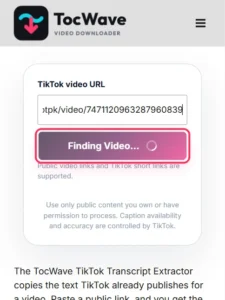
3. Tap Extract Transcript.
TocWave reads the public video page and looks for its caption tracks.
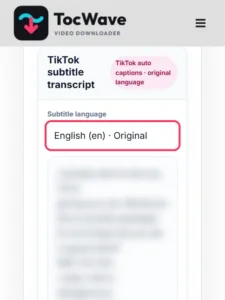
4. Pick a language.
If the video has more than one subtitle track, choose the language you want.
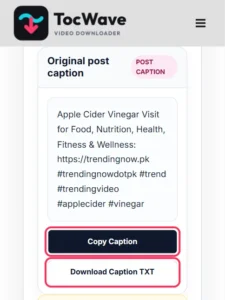
5. Copy or download.
Copy the text, or download it as a .txt file.
Transcript or caption: what’s the difference?
| Post caption | Subtitle transcript | |
|---|---|---|
| What it is | The text written under the video | The words spoken in the video, as TikTok captions them |
| Who writes it | The creator | TikTok’s auto captions, or the creator |
| Always there? | Usually | Only when TikTok has published subtitles |
| Best for | Hashtags, links, the creator’s own summary | Quotes, scripts, notes |
Why some TikTok videos have no transcript
TikTok creates auto captions for many videos, and viewers can switch captions on or off in the app (TikTok Newsroom). Not every video gets them, though. A video may have no subtitle track because:
- the creator didn’t turn captions on, or removed them,
- there’s no speech, only music or sound effects,
- TikTok doesn’t support captions for the spoken language,
- the video is private, deleted or limited to some regions.
In those cases TocWave tells you no transcript is available. It doesn’t guess or make text up.
What people use TikTok transcripts for
- Notes and study. Keep the steps of a tutorial or the key points of an explainer as text you can search.
- Accurate quotes. Quote a creator word for word in an article or a presentation, with credit and a link.
- Accessibility. Read a video when you can’t play sound, or share the text with someone who is deaf or hard of hearing.
- Your own content. Turn your own TikTok scripts into blog posts, newsletters or captions for other platforms.
- Translation. Paste the text into a translator when a video is in another language.
How accurate is the transcript?
As accurate as TikTok’s captions. Captions a creator added themselves are usually reliable. Auto captions can mishear names, slang and fast speech. TocWave copies the text exactly as TikTok publishes it, so read it through before you quote it or publish it.
Use transcripts responsibly
A video’s words belong to the creator. Quoting a short passage with credit and a link is a normal part of writing about something. Republishing a whole script, or passing it off as your own, needs the creator’s permission.
Is the TikTok transcript extractor safe?
Yes. TocWave never asks for your TikTok login and there’s nothing to install. Our server reads the same public video page anyone can open and returns its text to you. The extracted text is kept only for a short session so you can download it, and nobody is notified when you use the tool.
Not working? Quick fixes
| Problem | Likely cause | Fix |
|---|---|---|
| Only the caption appears | TikTok has no subtitle track for this video | Nothing to fix: there’s no published transcript |
| “Paste a TikTok video link” | It’s a profile or search link | Copy the link of the video itself |
| Private or unavailable | Private account, deleted or region-limited video | Only public videos work |
| Odd words in the transcript | TikTok’s auto captions misheard them | Check against the video and correct it |
More TocWave tools
- Save the video itself with the TikTok Video Downloader.
- Save the audio with the TikTok to MP3 converter.
- Save the cover image with the TikTok Thumbnail Downloader.
Frequently asked questions
Is this an AI transcription tool?
No. It copies the captions TikTok already publishes. It doesn’t listen to the audio, so it can’t create a transcript for a video that has no captions.
Which languages does it support?
Whatever subtitle languages TikTok publishes for the video. If there’s more than one track, you can choose between them.
What format is the download?
A plain-text .txt file that opens on any phone or computer. You can also copy the text straight from the page.
Does it work with TikTok short links?
Yes. Links from TikTok’s Share > Copy link, including short vm.tiktok.com links, are supported.
Is it free?
Yes. There’s no sign-up and no TikTok login.
Final thoughts
When a TikTok video says something worth keeping, the text is often already there in its captions. Paste the link, pick the language and copy the words instead of typing them out. Check auto captions before you quote them, and credit the creator when you use their words.